
Line Chart
Line charts show how logistics metrics change through time — transit durations, order volume, fuel cost, or on-time rate.
Example do and don't images
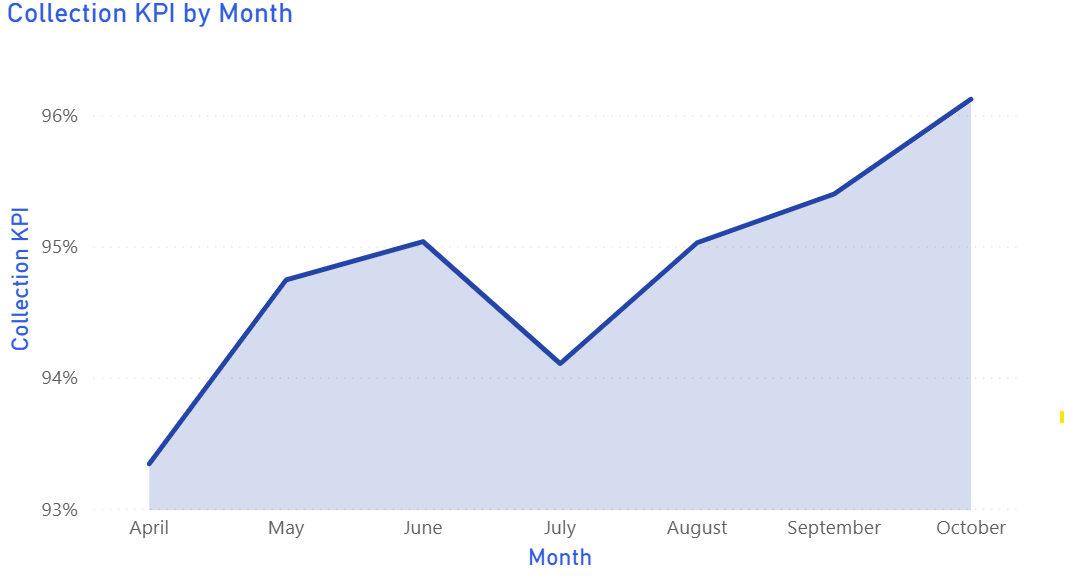
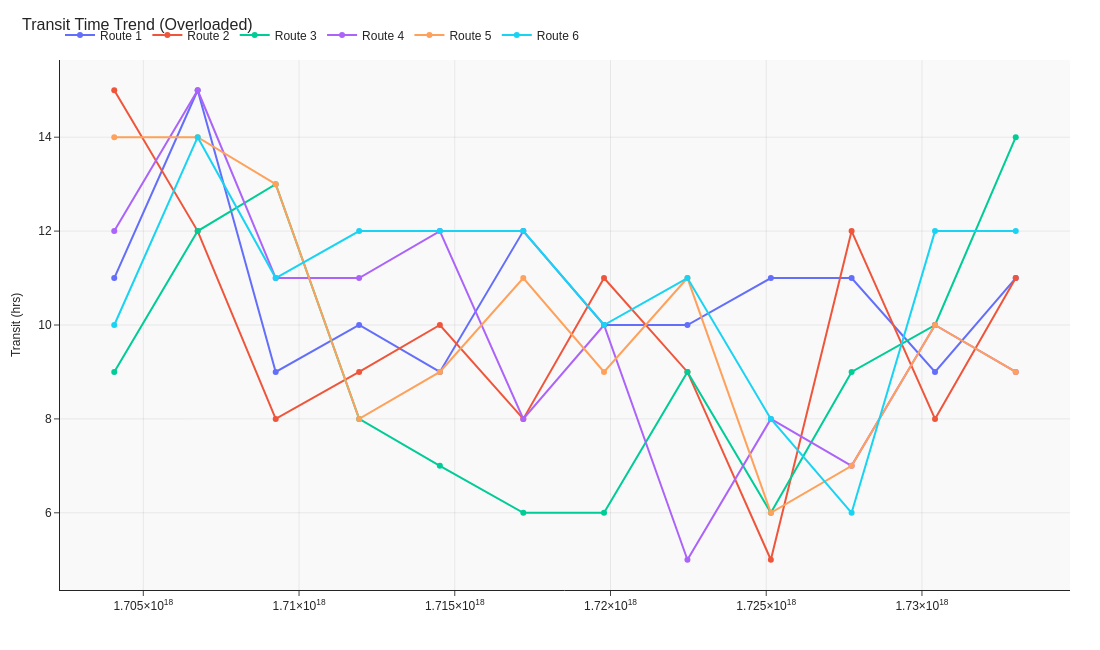
🔍 More Examples: Common Pitfalls
These are some of the most frequent mistakes we see in real dashboards. Learn to spot and fix them:
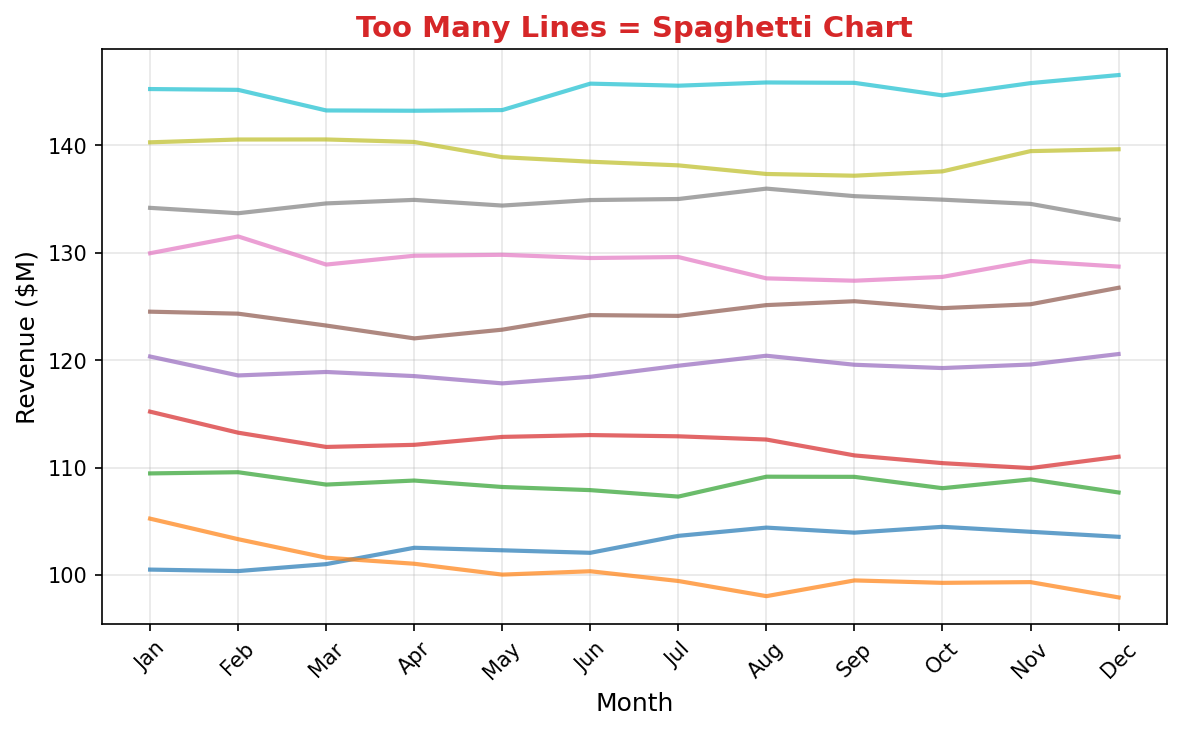
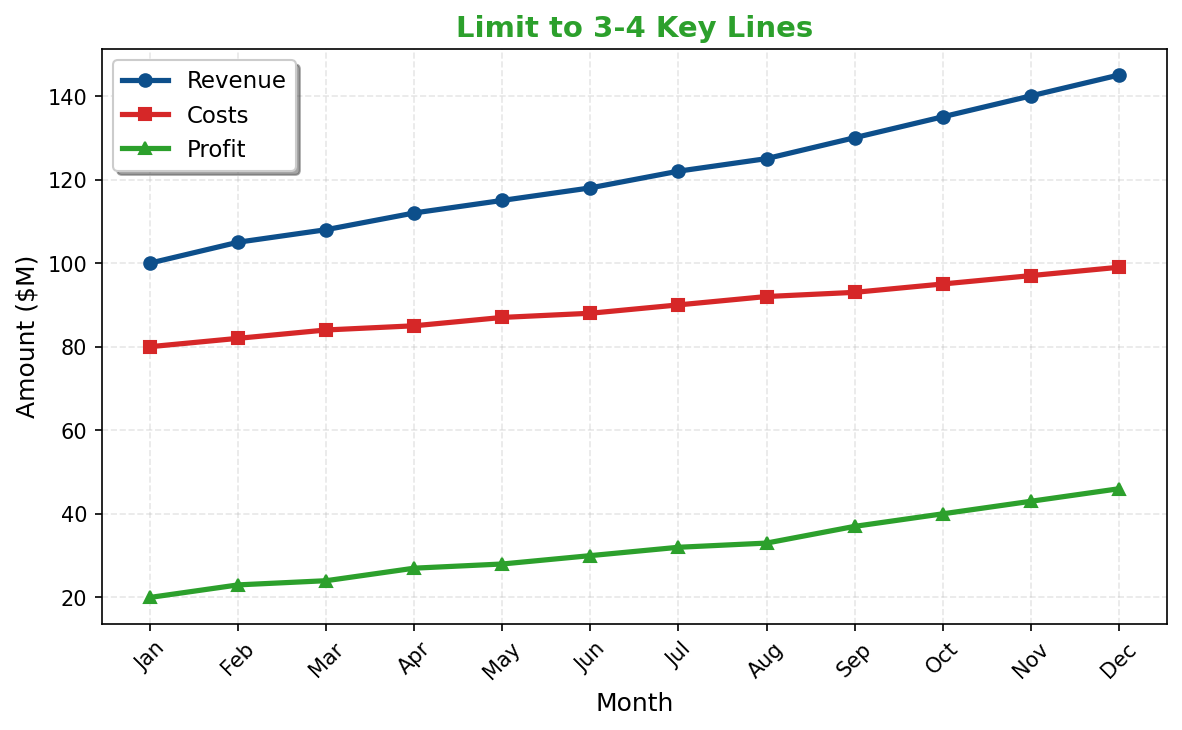


Do's
-
Highlight the key line.
Use bolder colour for the target KPI such as network average.
-
Annotate important events.
Mark storms, strikes, or policy changes directly on the timeline.
-
Smooth excess noise.
Rolling averages reveal real trends in delivery performance.
Don'ts
-
Avoid clutter.
Limit to a handful of comparable routes or use small multiples.
-
Don’t mix scales without context.
Separate cost and time to avoid misreads.
-
Skip decorative gradients.
Flat, crisp lines keep the message scientific.
Use cases
-
Average transit time trend
Shows seasonal effects or gradual improvement.
-
Fuel cost per km over time
Tracks efficiency initiatives.
-
Warehouse throughput trend
Reveals growth or congestion patterns.
Common Mistakes to Avoid
Even experienced analysts make these errors. Here's how to spot and fix them:
Too many lines
Why it's bad: Creates spaghetti charts where no single trend is clear.
Fix: Limit to 3-5 lines, or use small multiples for more series.
Ignoring scale differences
Why it's bad: Comparing values with vastly different ranges on one axis is misleading.
Fix: Use dual axes (carefully) or normalize to percentages.
Missing data interpolation
Why it's bad: Connecting points across missing data implies continuity that doesn't exist.
Fix: Show gaps, use dashed lines, or explicitly note interpolation.
Accessibility Guidelines
Make your visualizations accessible to everyone, including users with visual impairments, color blindness, or who rely on screen readers.
Color Considerations
Use colorblind-safe palettes:
- Avoid: Red-green combinations (8% of men are red-green colorblind)
- Use: Blue-orange, purple-yellow, or add patterns/textures
- Test: Use tools like Color Oracle or Coblis to simulate color blindness
Recommended palettes:
Contrast & Legibility
Meet WCAG 2.1 standards:
- Text contrast: Minimum 4.5:1 for normal text, 3:1 for large text
- Chart elements: 3:1 contrast between adjacent colors
- Labels: Use dark text on light backgrounds (or vice versa)
Font guidelines:
- Minimum 12pt for body text, 14pt+ preferred
- Avoid decorative or overly thin fonts
- Use bold for emphasis, not color alone
Screen Reader Support
Essential elements:
- Alt text: Describe the chart's key insight, not just "bar chart"
- Data tables: Provide raw data as an accessible table alternative
- Aria labels: Use aria-label for interactive elements
Example alt text:
"Bar chart showing sales increased 30% from Q1 to Q2, with Q2 reaching $2.5M. Technology had the highest growth at 45%."
Additional Techniques
Don't rely on color alone:
- Use patterns, textures, or shapes to differentiate categories
- Add direct labels to data points when possible
- Use icons or symbols alongside colors
Interactive features:
- Ensure keyboard navigation works (tab, arrow keys)
- Provide text summaries of key findings
- Allow users to toggle between visual and tabular views
📖 Helpful Resources
- Color Oracle: Free color blindness simulator for Windows, Mac, Linux
- WebAIM Contrast Checker: Test color contrast ratios
- ColorBrewer: Colorblind-safe color schemes for maps and charts
- WCAG 2.1 Guidelines: Full accessibility standards for web content
Story tip
Lines express momentum — perfect for spotting seasonal peaks and long-term improvements.