
Table / Matrix
Tables excel when precision matters — they’re the go-to for audit, finance, or detailed operational listings.
Example do and don't images
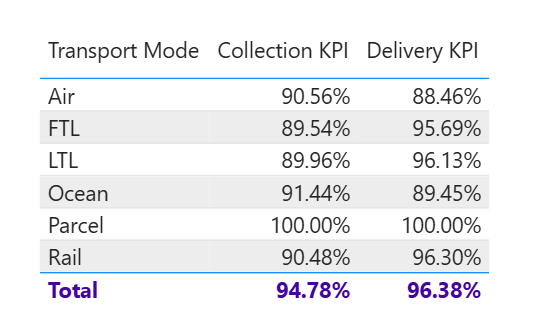
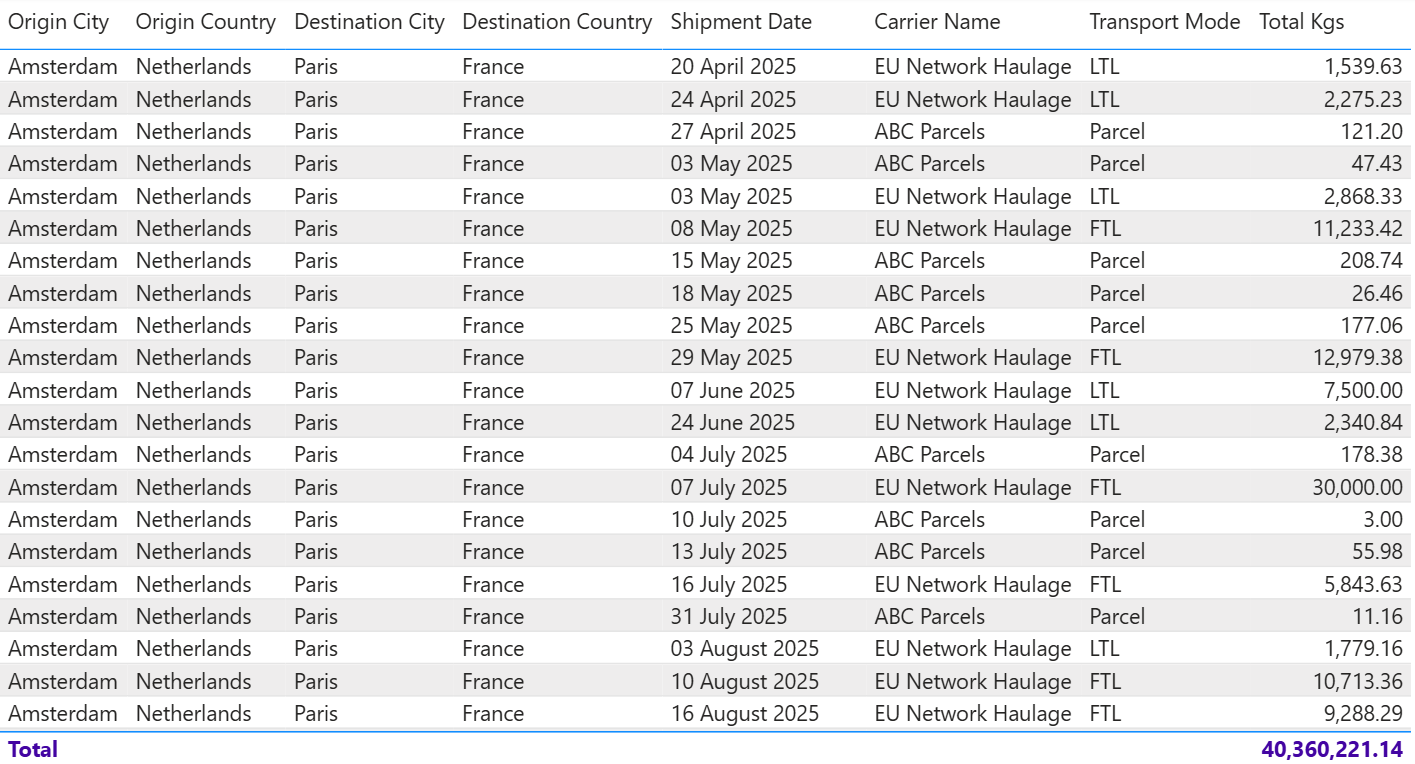
Do's
-
Use conditional formatting sparingly.
Highlight key metrics without turning the grid into a rainbow.
-
Freeze key identifiers.
Keep carrier or depot names visible while scrolling.
-
Trim unnecessary decimals.
Simpler numbers read faster and reduce clutter.
Don'ts
-
Avoid very wide layouts.
If users must scroll sideways, break the view into smaller reports.
-
Don’t mix too many formats.
Icons, bars, and colours together overwhelm comprehension.
-
Don’t use tables to show trends.
Visuals communicate pattern; tables communicate detail.
Use cases
-
Carrier cost summary
Provide detailed metrics for procurement audits.
-
Exception lists
Highlight delayed or damaged shipments needing action.
-
Operational logs
Offer transparency and traceability for every movement.
Common Mistakes to Avoid
Even experienced analysts make these errors. Here's how to spot and fix them:
Overcomplicating the visual
Why it's bad: Too much information overwhelms the viewer and obscures the message.
Fix: Focus on one clear message per chart. Use multiple simple charts instead of one complex one.
Poor color choices
Why it's bad: Can make data hard to read or inaccessible to colorblind viewers.
Fix: Use colorblind-safe palettes and ensure sufficient contrast.
Missing context
Why it's bad: Data without context (targets, benchmarks, time period) is meaningless.
Fix: Always include titles, labels, units, and reference points.
Accessibility Guidelines
Make your visualizations accessible to everyone, including users with visual impairments, color blindness, or who rely on screen readers.
Color Considerations
Use colorblind-safe palettes:
- Avoid: Red-green combinations (8% of men are red-green colorblind)
- Use: Blue-orange, purple-yellow, or add patterns/textures
- Test: Use tools like Color Oracle or Coblis to simulate color blindness
Recommended palettes:
Contrast & Legibility
Meet WCAG 2.1 standards:
- Text contrast: Minimum 4.5:1 for normal text, 3:1 for large text
- Chart elements: 3:1 contrast between adjacent colors
- Labels: Use dark text on light backgrounds (or vice versa)
Font guidelines:
- Minimum 12pt for body text, 14pt+ preferred
- Avoid decorative or overly thin fonts
- Use bold for emphasis, not color alone
Screen Reader Support
Essential elements:
- Alt text: Describe the chart's key insight, not just "bar chart"
- Data tables: Provide raw data as an accessible table alternative
- Aria labels: Use aria-label for interactive elements
Example alt text:
"Bar chart showing sales increased 30% from Q1 to Q2, with Q2 reaching $2.5M. Technology had the highest growth at 45%."
Additional Techniques
Don't rely on color alone:
- Use patterns, textures, or shapes to differentiate categories
- Add direct labels to data points when possible
- Use icons or symbols alongside colors
Interactive features:
- Ensure keyboard navigation works (tab, arrow keys)
- Provide text summaries of key findings
- Allow users to toggle between visual and tabular views
📖 Helpful Resources
- Color Oracle: Free color blindness simulator for Windows, Mac, Linux
- WebAIM Contrast Checker: Test color contrast ratios
- ColorBrewer: Colorblind-safe color schemes for maps and charts
- WCAG 2.1 Guidelines: Full accessibility standards for web content
Story tip
Tables complement visuals by providing exact figures behind the story.